
Product Code Search
Overview: A Product Code is a unique number that represents an inventory item in the Project Product Catalog.
Topics:
Process:
From the CMMS Menu > Admin > Project Catalog > Product Code Search.
Enter
your search criteria:
Product Code: unique number that represents an inventory item.
Supplier ID: indicates supplier's identification
Vendor: Unique number that represents the company that sells material to the Electric Distributor for distribution.
Discipline Cd: Any additional data that may be required in the Project Catalog.
Size: The actual thread size of material (ex: 3/4 inch, enter 75) For cable, the AWG size is entered.
Alt Prod Code: alternative Product Code
Catalog: The part number used for identification of material by the manufacturer.
Manufacturer: Name of Manufacturer for product.
Category: Product category (ex: wire, lighting, etc.)
Bin Location: Physical location of product in warehouse
P.O. Line No: The line item number of the products Purchase Order.
Tag No: The assigned number for a single product.
Currency Code: type of currency used (ex: USD, EUR)
Active: Designates if the Product Code is Active or Inactive (If blank, product code was imported).
Image Control #: Number assigned to productive image in Content Central.
Description: short description of item/product
Drill
Down Search
Discipline: Allows the user to search by the description of the Product (Example: Boxes, Lighting, etc.)
Key Word: Allows the user to type a word to assist with the Drill Down Search Discipline.
Click Search.
A list of search results will populate:
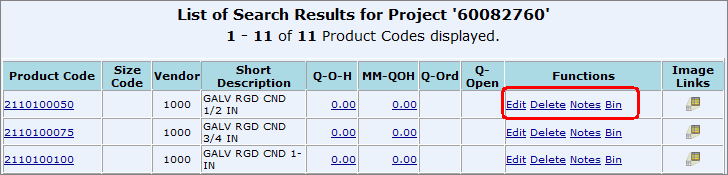
Product Code: unique number that identifies material in the project product catalog. Hyperlink allows you to look at the Project Catalog Drawing Estimate Report.
Size Code: The actual thread size of material (ex: 3/4 inch, enter 75) For cable, the AWG size is entered.
Vendor: Unique number that represents the company that sells material to the Electric Distributor for distribution.
Short Description: short description of item/product
Q-O-H: hyperlink to view Quantity on Hand
MM-QOH: hyperlink to view Mid/Max Quantity on Hand
Q-Ord: Quantity of material ordered.
Q-Open: Quantity yet to be received.
Functions: hyperlinks allow you to edit, delete, add notes, and attach a Bin to a product.
Image Links: hyperlink allows you to look at images associated with product code.
Click on the Edit hyperlink in the "Functions" column on the Search Results screen to edit the Product Code.

Make any edits to the Product Code and click Submit.
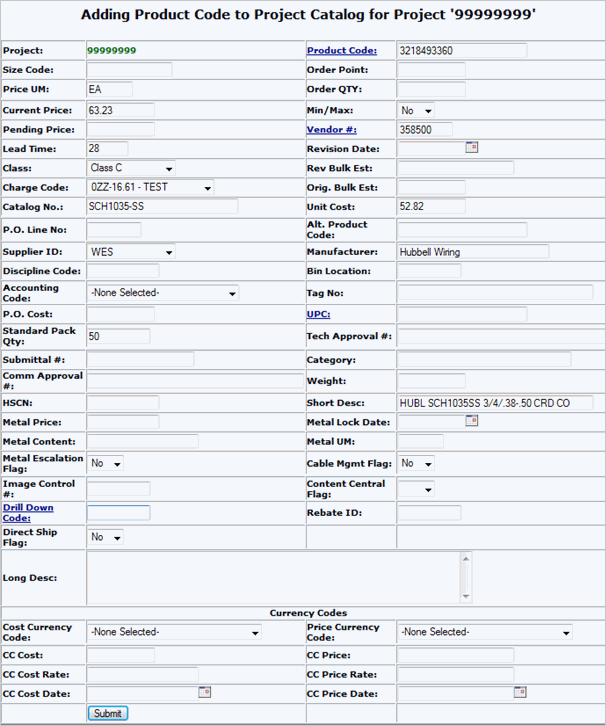
Enter
the Product Code and all
details associated with it:
Size Code: The actual thread size of material (ex: 3/4 inch would be entered 75) For cable the AWG size is entered.
Order Point: Designate a number that material will be order when reached if the item is flagged as Min/Max.
Price UM: The unit of measure (ex. each).
Order QTY: If an item is flagged as Min/Max and the order point is reached, then the order QTY should be purchased.
Current Price: The current customers price.
Min/Max: Flag Item Yes if it is to be used as a Min/Max item. Min/Max items are a separate inventory typically setup in a container at the job site.
Pending Price: Future price when pricing agreements have expired.
Vendor #: unique number that represents the company that sells material for distribution
Lead Time: number of days required to obtain material
Revision Date: Date when there is a revision made to the Bulk Estimate.
Class: assigned code, used to determine return policy for material
Rev Bulk Est: Revised Bulk Estimate: changes to the original bulk estimate
Charge Code: Customers accounting code for different types of material.
Orig. Bulk Est: Original Bulk Estimate: total of the material quantities required for a project based on Drawing
Catalog No.: the part number used for the identification of material by the manufacturer
Unit cost: Typically the rebated cost, if no PO cost is entered the Unit cost will appear on the Purchase Order.
P.O. Line No: line number of product on Purchase Order
Alt Product Code: optional number used as an alternative product code
Supplier ID: unique number that indicates a supplier's identification
Manufacturer: Name of Manufacture for the product.
Discipline Code: Any additional data that may be required in the Project Catalog.
Bin Location: location of product in warehouse
Accounting Code: client assigned number for tracking cost and allocation of cost to the proper general ledger account.
Tag No: An assigned number for a single product.
P.O. Cost: Distributor into stock price.
UPC: 11 digit Universal Product Code used by Trade Service. Updates MMS with product information.
Standard Pack Qty: The standard package quantity that the product is delivered in.
Tech Approval #: Customer approval number.
Submittal #: Distributor's Submittal number for product approval.
Weight: Weight of product based on its Unit of Measure.
HSCN: Harmonized system or Schedule B number.
Short Desc: short description of product
Metal Price: Copper price the quoted/current price was based on.
Metal Lock Date: Date metal price was locked in.
Metal Content: Copper weight of material.
Metal UM: Unit of measure for copper weight of material.
Metal Escalation Flag: Items flagged as Yes have copper escalation against them.
Image Control #:Number assigned to productive image in Content Central.
Content Central Flag: Flag set to yes, to include in Content Central product file.
Drill Down Code: Identify the description of the item by specific words to associate to the Drill Down Search.
Rebate ID: For EDI purposes. Enter rebate ID for product. (Rebate ID must be entered into the Rebate ID Vendor List function first)
Direct Ship Flag: Select yes if the items is only a Direct ship item. Used to automatically create a Direct Release.
Long Desc: Long description of product.
 Click
Here for Currency Code Instructions.
Click
Here for Currency Code Instructions.
Cost Currency Code: Currency code for cost if different from base.
Price Currency Code: Currency code for price if different from base.
CC Cost: Cost in currency.
CC Price: Price in currency.
CC Cost Rate: Cost Currency Rate.
CC Price Rate: Price currency Rate.
CC Cost Date: Date of currency cost rate.
CC Price Date: Date of currency price rate.
Click on the Delete hyperlink in the "Functions" column on the Search Results screen to delete the Product Code.

Click Confirm or Abort.

Click on the Notes hyperlink in the "Functions" column on the Search Results screen to view or add Expedite Notes to the Product Code.

You can view existing Expedite Notes or add notes by typing it into the field.
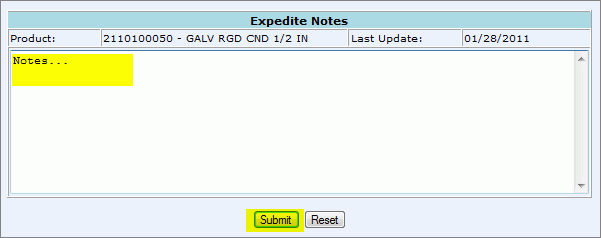
Click Submit.
Reset: will clear out the notes that were just added but keep all notes that have been submitted.
5) Add Bin Location. See: Add Bin Location
