Project Catalog Excel Layout
Overview: This report allows the user to specific per project how the Project Catalog Excel download will appear. This report allows the user to select specific columns to display on the Excel download, the order they are to display in, as well as the Column Headers name. The system will save the data for the project so that any login user name can download the same Excel Layout.
Process:
From the CMMS Menu > Reports > Project Catalog Excel Layout.
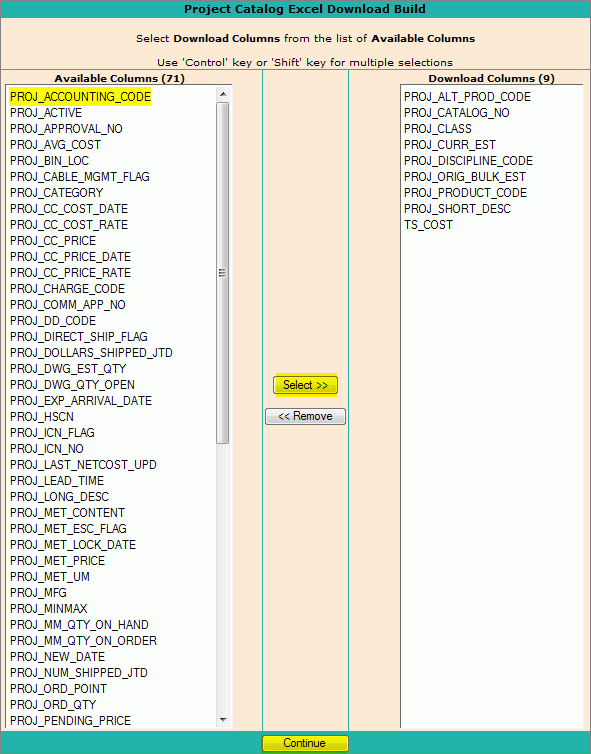
Select the Project Catalog column that you want to display on the Excel format.
Click Select to move the column description from Available Columns to Download Columns.
Repeat step A and B until you have identified all columns to display on the Excel download.
Click Continue.
A list of the Columns selected will display.
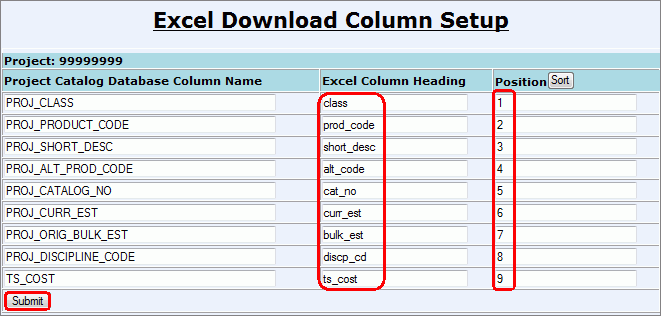
Enter the following and then click Submit to generate report.
Excel Column Heading: This will be the new column heading in Excel instead of the database name.
Positions: This will be the numerical order they will display in Excel.
To view Customized Excel download return to CMMS > Reports > Project Catalog Report. Fill out report criteria and click the Excel button at the bottom of the screen.